Can't Load Website on Netlify
Built a website on Claude and can't load it on Netlify? Learn whether your issue is in the HTML file, the GitHub repository upload, or the Netlify build settings.


When a website built with Claude cannot load on Netlify, the issue almost always boils down to one of two things: an HTML file configuration error (local paths, missing scripts, or unbundled code) or a GitHub upload mistake (nested wrapper folders where Netlify cannot find index.html). If you have hosted sites on Netlify before without issues, the difference usually stems from moving from manual drag-and-drop to a GitHub-connected repository. When you need the deploy fixed and verified immediately, you can hire a verified Netlify developer to configure your build pipeline and resolve the issue within 1 to 2 hours.
This troubleshooting guide is written specifically for founders and creators who generated an application or landing page in Claude, pushed it to GitHub, connected it to Netlify, and ended up with a blank page or a Page Not Found error. Below is the exact process to determine whether your problem is in the HTML file or the GitHub upload, and how to get your site live immediately.
HTML file issue vs. GitHub upload issue: how to tell in 30 seconds
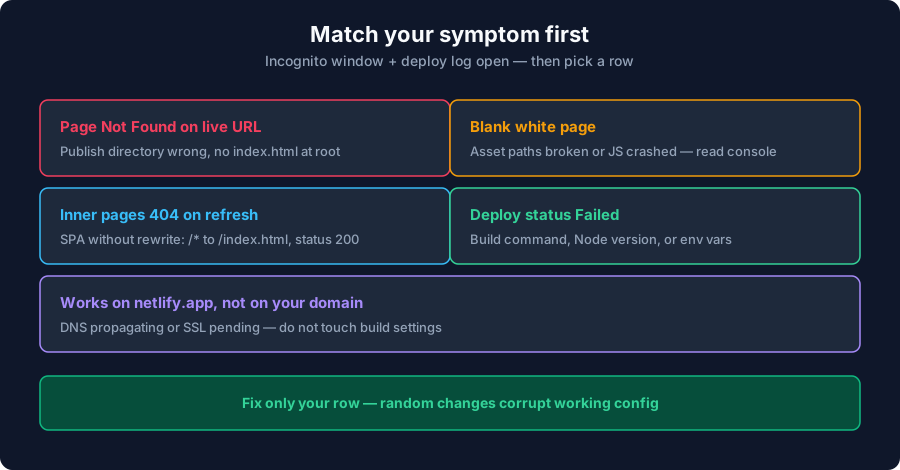
The fastest way to isolate whether the failure comes from your HTML file or your GitHub upload is to open your live Netlify URL and compare what you see against this diagnostic matrix:
| What you see on Netlify | Primary cause | Is it HTML or GitHub? | Immediate action |
|---|---|---|---|
| Netlify 404: "Page Not Found" | Netlify looked in the publish directory and found no index.html file. |
GitHub upload issue (or wrong Publish directory setting). | Check your repo root. If index.html is inside a subfolder, move it to the root or set Base directory. |
| Completely blank white screen | The HTML file loaded, but its JavaScript crashed or external assets returned 404. | HTML file issue. | Open Developer Tools (F12) → Console. Fix absolute local paths (file:/// or localhost) or unbundled scripts. |
| Deploy status: "Failed" (Red in Netlify) | Netlify attempted to run a build command (like npm run build) that exited with an error. |
GitHub / Build settings issue. | Open the Deploy log. If it is a plain HTML site, remove the build command in Netlify Site Settings. |
| Homepage works, but refreshing any page gives 404 | Client-side router (React, Vue) without a Netlify rewrite rule. | Routing configuration issue. | Add a _redirects file containing /* /index.html 200 to your publish folder. |
Why did it work before, but fails now on Netlify?
A frequent point of confusion is: "I have hosted sites on Netlify before and didn't have this problem." In nearly every case, the previous successful deployment used Netlify's Drag and Drop interface (uploading a zipped folder directly via the dashboard), whereas the new attempt connects directly to a GitHub repository.
These two deployment paths work completely differently:
- Manual Drag & Drop: You drop an already-extracted folder containing your files. Netlify takes the exact files in that folder and uploads them directly to its CDN storage. It runs no build commands, ignores Git branches, and assumes whatever is in that folder is ready to serve.
- GitHub Continuous Deployment: Netlify spins up an isolated build container (Ubuntu container with Node.js, Python, and Git), clones your repository, searches for configuration files like
package.jsonornetlify.toml, and attempts to build and publish according to your site settings.
When you switch to GitHub, any minor structural mistake—such as pushing a folder inside a folder, committing a .zip file instead of raw files, or leaving an unnecessary build command in the settings—causes Netlify to fail where drag-and-drop previously succeeded.
The GitHub upload issue: nested folders and repository structure
When you export code from Claude (for example, clicking "Download" on an artifact or saving a generated project), Claude frequently packages the files inside a wrapper directory. If you push that entire downloaded folder to GitHub, your repository structure ends up with an extra layer:
Your-GitHub-Repo/
└── claude-project-folder/     <-- WRONG: Extra wrapper folder!
    ├── index.html
    ├── styles.css
    └── script.js
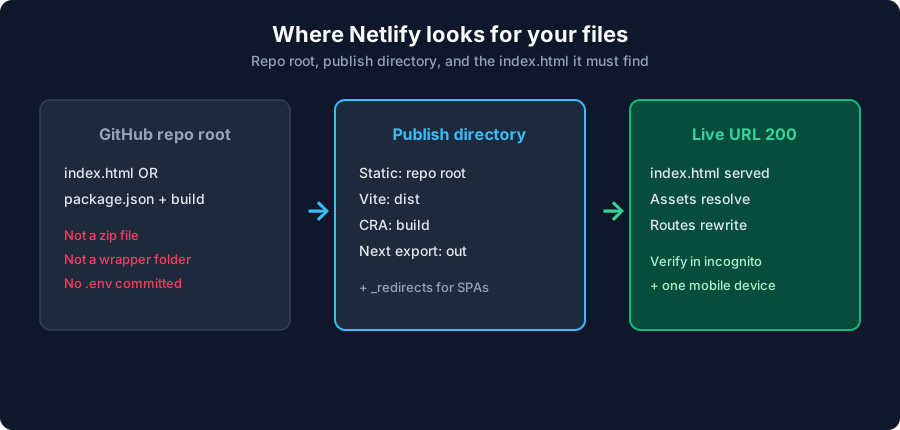
When Netlify connects to your GitHub repository with default settings, it looks for index.html at the very root of the repo (Your-GitHub-Repo/index.html). Because your file is buried one level down inside claude-project-folder/, Netlify finds an empty directory, finishes the deploy, and presents visitors with a Page Not Found error.
How to fix the GitHub repository structure
- Option A (Recommended): Flatten your GitHub repository. Move
index.html, your CSS, and your JavaScript files so they sit directly at the root of the repository. Rungit add .,git commit -m "Move index.html to repo root", andgit push. Netlify will auto-deploy the update. - Option B: Update Netlify Base Directory. In your Netlify dashboard, navigate to Site configuration → Build & deploy → Continuous deployment → Build settings. Set the Base directory field to the exact name of your subfolder (e.g.,
claude-project-folder). Save settings and click Trigger deploy.
The HTML file issue: common bugs in Claude-generated code
If Netlify reports a successful green deploy, but opening the site presents a blank white page or unstyled text, the problem is inside the HTML and asset code generated by Claude. Here are the three most common HTML file errors produced by AI models:
1. Absolute local file paths and localhost URLs
Claude frequently writes code that references local machine paths or local test servers that only exist during generation. Inspect your index.html file in a text editor and search for these strings:
When hosted on Netlify, links starting with file:/// or localhost are blocked by modern web browsers for security reasons, resulting in a blank screen.
2. Unbundled React, JSX, or TypeScript in pure HTML
Claude sometimes generates modern React code inside an HTML artifact using JSX syntax (like <div className="container">) or imports like import React from 'react' without including Babel or a bundler. Browsers cannot parse raw JSX or unbundled npm module imports directly from static HTML.
If you see errors in the console like Uncaught SyntaxError: Cannot use import statement outside a module or Unexpected token '<', you must either compile the project with a bundler like Vite, or ask Claude to rewrite the code as standalone vanilla HTML, CSS, and JavaScript using standard browser APIs.
3. Missing CDN script tags and stylesheet links
Claude artifacts often rely on libraries like Tailwind CSS, Lucide icons, or FontAwesome. If Claude wrote classes like class="flex justify-between p-4 bg-slate-900" but forgot to include the Tailwind CDN script in the <head> section, your site will load completely unstyled.
Netlify build settings for Claude sites
When connecting a repository, Netlify asks for three build parameters. Setting these incorrectly will cause immediate deployment failure:
| Project Type from Claude | Base directory | Build command | Publish directory |
|---|---|---|---|
| Plain HTML / CSS / Vanilla JS | (leave empty) | (leave empty) | . (or leave empty) |
| Vite (React, Vue) | (leave empty) | npm run build |
dist |
| Create React App | (leave empty) | npm run build |
build |
| Next.js (Static Export) | (leave empty) | npm run build |
out |
Crucial Rule: If your Claude export is just an index.html file with some CSS and JS files, you do not have a build command. If Netlify has npm run build filled in, delete it. Leaving a build command on a project with no package.json causes Netlify's build bot to crash with error code 127.
Step-by-step: uploading a Claude website to GitHub and Netlify correctly
Follow these exact steps to ensure your Claude site deploys without errors:
- Unzip and organize locally: Extract the files from Claude into a clean directory on your computer. Verify that
index.htmlis directly inside this folder, not nested inside another folder. Double-clickindex.htmlto verify that it opens and displays properly in Chrome or Firefox. - Initialize your Git repository: Open your terminal or Git Bash inside that folder and run:
git init git add . git commit -m "Initial commit of Claude website" git branch -M main git remote add origin https://github.com/YOUR_USERNAME/YOUR_REPO.git git push -u origin main - Check your GitHub repository in the browser: Open your repository URL on GitHub. The top-level file list must show
index.htmlimmediately, not a folder with your project's name. - Connect Netlify: In Netlify, click Add new site → Import an existing project → GitHub. Select your repository.
- Configure settings: For standard HTML, leave Build command and Publish directory blank. For Vite projects, set build command to
npm run buildand publish directory todist. Click Deploy.
Fixing 404 on refresh for Single Page Applications (SPA)
If your Claude website uses React Router, Vue Router, or modern client-side navigation, you will encounter the classic SPA routing issue: the homepage loads, but clicking a link and pressing refresh returns Netlify's 404 page.
This happens because client-side routers manage URLs in the browser. When you refresh yourdomain.com/dashboard, Netlify's server searches for a physical file named dashboard.html on its CDN, which does not exist.
To fix this, create a plain text file named _redirects (no file extension) in your publish directory (the same folder as index.html) and add this single line:
/* /index.html 200This tells Netlify to serve index.html with a 200 HTTP status code for every request, allowing your JavaScript router to handle the route.
When to hire a developer to fix your Netlify deployment
If you have verified your file paths and repository layout, but your deployment still fails due to build dependency errors, npm module conflicts, missing environment variables, or complex custom domain DNS propagation issues, do not waste days on trial-and-error.
On ProofDevs, you can hire a verified Netlify developer who specializes in fixing broken builds, continuous deployment pipelines, and AI-generated site migrations. An experienced independent engineer will connect to your repository, inspect your deploy logs, configure your build settings, and deliver a working live site in 1 to 3 hours at a transparent rate of $45 to $95 per hour.
FAQ: Can't load website on Netlify
Why does my Claude website show Page Not Found on Netlify?
Netlify displays Page Not Found when it cannot locate index.html in the designated publish directory. This usually happens when the files were pushed to GitHub inside a nested subfolder instead of at the repository root.
Why is my Netlify deployment a blank white screen?
A blank white screen indicates that the HTML loaded, but the JavaScript crashed or styles failed to load. Open your browser console (F12) to identify the failing resource—typically absolute file:/// paths, unbundled React/JSX code, or missing environment variables.
Can I upload my Claude site to Netlify without using GitHub?
Yes. You can drag and drop your unzipped project folder directly into the Sites tab in the Netlify dashboard. However, connecting through GitHub is strongly recommended for version control, automated updates, and custom domain setup.
What should I put in Netlify Build Command for a Claude HTML site?
Leave the Build Command completely blank. A plain HTML/CSS/JavaScript website has no compilation step; entering a command like npm run build will cause the deploy to fail if no package.json file exists.
How do I fix 404 errors when refreshing inner pages on Netlify?
Create a file named _redirects in your publish directory with the rule /* /index.html 200. This redirects all incoming traffic to your main index file so your client-side router can display the page.
Still unable to get your site live? Connect with a verified Netlify developer on ProofDevs to diagnose your deploy log, resolve the GitHub configuration, and get your project online today.
Written by Michael Melnyk
Senior IT Technical Writer & Technology Analyst
Senior Technical Writer and IT Industry Analyst with over 7 years of experience analyzing software engineering ecosystems, tech leadership models, and developer procurement frameworks.