How to Deploy a Static Website to a Custom Domain: Hosting, DNS, and Launch Checklist
You have a finished HTML/CSS website and a domain name. Here is how to deploy it to global edge hosting, map your DNS without breaking business email, and complete technical SEO verification.

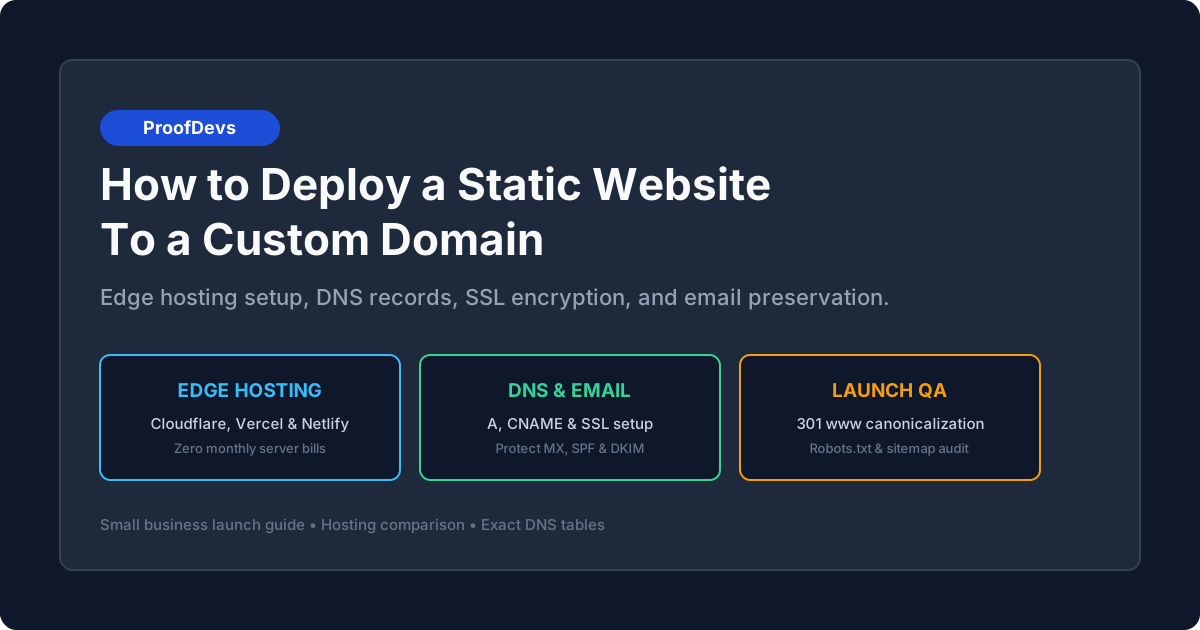
Updated September 2026. A completed folder of static HTML, CSS, JavaScript, and images is the cleanest foundation for a commercial website. Unlike dynamic CMS platforms that query a database on every pageview, static websites load from memory, carry zero database attack surfaces, and run globally on Edge Content Delivery Networks (CDNs) with zero monthly server bills. However, transitioning local files to a live custom domain introduces technical friction: DNS record mapping, SSL certificate handshakes, canonical 301 redirects, and email record preservation.
For non-technical business owners and founders, a deployment mistake can lead to broken HTTPS browser warnings or disabled corporate email. This guide outlines how to deploy a static website to global edge hosting under an account you own, configure DNS records accurately, and complete technical SEO verification before launch. If you prefer an experienced engineer to handle deployment, DNS, and launch QA as a focused 2 to 4 hour task, you can book website deployment and launch services or hire an engineer for one-time developer tasks with fixed deliverables.
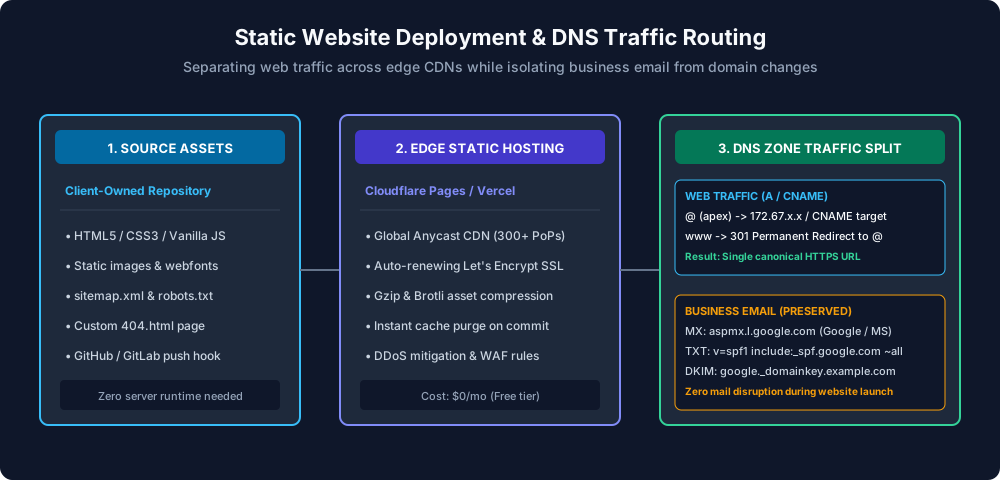
Figure 1: Architecture of a static website deployment — routing web traffic across global edge CDN points of presence while isolating existing MX and SPF corporate email records.
Why Traditional cPanel Hosting Is Obsolete for Static Sites
For decades, deploying a website meant purchasing a $10 to $20 monthly shared hosting package (Bluehost, HostGator, or GoDaddy cPanel), opening an FTP client like FileZilla, and uploading files to a public_html directory. In 2026, this approach introduces unnecessary cost and operational risk:
- Single Point of Failure: Shared cPanel hosting serves requests from a single origin server in one physical data center. If an Australian customer visits a server located in Texas, they experience 250ms of network latency before the first byte arrives.
- Security Maintenance Overhead: Traditional web servers run Apache or Nginx on Linux runtimes that require ongoing security patches, PHP updates, and firewall configuration.
- Recurring Subscription Fees: Paying $120 to $240 annually for shared hosting to serve static HTML files is an unnecessary operational expense.
Modern static hosting relies on Edge Content Delivery Networks (Cloudflare Pages, Vercel, Netlify, GitHub Pages). When you deploy a static build to an edge platform, your HTML files are copied to more than 300 data centers worldwide. DNS anycast routes each visitor to the geographically closest server, delivering sub-50 millisecond load times globally on generous free tiers.
Selecting Edge Static Hosting: Cloudflare Pages vs Vercel vs Netlify
Three platforms dominate professional static website hosting. All three offer free tiers that comfortably accommodate small business traffic volumes without monthly charges.
| Feature | Cloudflare Pages | Vercel | Netlify |
|---|---|---|---|
| Bandwidth Allowance | Unlimited on free tier | 100 GB / month free | 100 GB / month free |
| Custom Domains & SSL | Unlimited domains; native Cloudflare SSL | Unlimited domains; Let's Encrypt SSL | Unlimited domains; Let's Encrypt SSL |
| Deployment Methods | Direct Git repository or direct folder drag-and-drop | Git repository or Vercel CLI | Git repository or Netlify Drop folder upload |
| Best Fit For | Plain HTML/CSS sites, documentation, high-traffic static blogs | Next.js, React, full-stack TypeScript web applications | Jamstack sites utilizing form handling and serverless functions |
| Enterprise Lock-in Risk | Low (static assets deploy anywhere) | Low for static HTML; medium if using proprietary Vercel APIs | Low for static HTML; medium if using Netlify Forms |
For a plain HTML/CSS website consisting of 10 to 50 files, Cloudflare Pages is the pragmatic choice because its free tier imposes no bandwidth caps and natively integrates with Cloudflare DNS management.
Phase 1: Deploying Code to Edge Hosting (Account Ownership Rule)
The primary governance rule when launching a website is direct client account ownership. Never allow an external contractor or freelancer to host your website inside their personal agency account. If the relationship concludes or the contractor becomes unresponsive, you lose administrative control over your website files and DNS settings.
Step-by-Step Deployment on Cloudflare Pages
- Create Your Account: Register directly at dash.cloudflare.com using your corporate email address.
- Navigate to Pages: In the dashboard sidebar, select Compute (Workers & Pages) → Create application → Pages.
- Upload Assets: You can connect a private GitHub/GitLab repository for automatic continuous deployment, or select Direct Upload to drag and drop your root website folder directly.
- Verify the Preview URL: Cloudflare immediately provisions a free staging URL (for example,
my-business-site.pages.dev) protected by an automatic SSL certificate. Inspect this URL in your browser to verify that all images, styles, and internal links load accurately.
Phase 2: Custom Domain Mapping & DNS Configuration
Mapping your custom domain (such as example.com or learntocook.au) is where deployment errors most commonly occur. A domain name points to server IP addresses through DNS records managed at your domain registrar (Namecheap, GoDaddy, Google Domains, Cloudflare Registrar).
Preventing Corporate Email Disruption
If your business already uses professional email (such as Google Workspace or Microsoft 365), your domain's DNS zone contains critical MX (Mail Exchange), SPF, and DKIM records. If you change your domain's Nameservers (NS records) without replicating existing records, all inbound and outbound company email stops working immediately.
To avoid email outages, leave your nameservers unchanged and configure only the web traffic records (A and CNAME), or export your complete DNS zone file and replicate every MX and TXT record before switching nameservers.
Standard DNS Zone Configuration Table
Configure the following DNS records in your domain provider's management console:
| Record Type | Host / Name | Value / Target | TTL | Purpose |
|---|---|---|---|---|
| CNAME | www |
my-business-site.pages.dev |
Auto / 300s | Routes www subdomain traffic to your edge hosting endpoint |
| CNAME (or ALIAS/ANAME) | @ (root apex) |
my-business-site.pages.dev |
Auto / 300s | Routes apex domain (example.com) to your edge hosting project |
| MX (Do not modify!) | @ |
aspmx.l.google.com (Priority 1) |
Auto / 3600s | Preserves Google Workspace or Microsoft 365 mail delivery |
| TXT (Do not modify!) | @ |
v=spf1 include:_spf.google.com ~all |
Auto / 3600s | Preserves anti-spoofing email delivery security |
Note on Apex Domains: Standard DNS specifications (RFC 1912) technically forbid CNAME records on the root apex domain (@). Modern DNS providers (Cloudflare, Namecheap, DNS Made Easy) solve this using CNAME Flattening or ALIAS records, automatically resolving the edge hostname to an IP address at the DNS level.
Phase 3: SSL/TLS Provisioning and Canonical 301 Redirects
Once DNS records propagate, your hosting provider generates an SSL/TLS certificate (typically via Let's Encrypt or Cloudflare Universal SSL). Two critical configuration rules must be verified:
1. Enforce HTTPS Encryption
In your hosting or DNS console, enable Always Use HTTPS (or Automatic HTTPS Rewrites). Verify that entering http://example.com in a browser automatically issues an HTTP 301 Moved Permanently response, redirecting visitors to https://example.com.
2. Canonical Domain Normalization (www vs non-www)
Search engines treat example.com and www.example.com as two separate websites if both respond with identical content, causing duplicate content penalties that dilute organic ranking power. Decide on one primary version (the bare apex domain is standard for modern businesses) and configure a permanent 301 redirect for the secondary version:
- If your primary domain is
https://example.com, visitinghttps://www.example.commust permanently redirect (301) tohttps://example.com. - In Cloudflare, this is configured via a single Page Rule or Redirect Rule:
www.example.com/*→https://example.com/$1(301 Permanent Redirect).
Phase 4: Technical SEO Readiness and Launch QA
Before considering a deployment finished, complete this six-point technical verification checklist:
1. Validate robots.txt Syntax
Ensure a plain text file named robots.txt resides at your root domain (https://example.com/robots.txt). Confirm it does not contain a broad disallow rule left over from development (such as Disallow: /). A clean production configuration reads:
User-agent: *
Allow: /Sitemap: https://example.com/sitemap.xml
2. Verify sitemap.xml Accessibility
Confirm that your XML sitemap loads with valid XML syntax at https://example.com/sitemap.xml and lists all canonical public page URLs with accurate lastmod timestamps. Submit this sitemap directly to Google Search Console.
3. Test Custom 404 Error Page Handling
Type a non-existent URL path into your browser (for example, https://example.com/this-page-does-not-exist). Verify that the server returns an HTTP 404 Not Found header status (not an HTTP 200 OK) while displaying your custom branded 404 page rather than an unstyled hosting provider error template.
4. Inspect Canonical Tag Meta Elements
Check the <head> section of your HTML files. Every public page must contain a self-referencing canonical tag:
<link rel="canonical" href="https://example.com/about" />5. Verify Mobile Core Web Vitals
Run your primary URLs through Google PageSpeed Insights. Pure static HTML/CSS sites hosted on edge CDNs typically score between 95 and 100 on Performance. If scores lag, verify that image assets are compressed in modern WebP or AVIF formats with explicit width and height attributes to prevent layout shifts.
6. Set Up Google Search Console Property Verification
Verify ownership in Google Search Console via DNS TXT record or HTML file upload. This enables you to monitor indexing status, inspect crawler errors, and receive immediate alerts if security issues arise.
When to Hire an Independent Developer for Deployment
While static website deployment is straightforward for software engineers, business owners with active commercial domains often prefer delegating deployment to avoid operational risk. Contracting an independent developer makes commercial sense when:
- Your domain already routes active Google Workspace or Microsoft 365 business email, and you cannot afford email downtime during DNS changes.
- You have custom domain requirements (such as regional ccTLDs like
.com.au,.co.uk, or.de) that impose strict DNS validation policies. - You need an engineer to review HTML tags, verify responsive layout rendering across mobile devices, and audit technical SEO metadata before marketing campaigns launch.
- Your site exports from AI builders (v0, Bolt, Claude Artifacts) or headless CMS tools and requires repository structuring, build script configuration, and asset optimization.
A senior independent developer charges between $45 and $95 per hour and typically completes an entire deployment, DNS configuration, and launch QA pass in 2 to 4 hours ($100–$350 total). You receive a fully live website on your custom domain, verified email routing, and 100% administrative account ownership. You can find vetted technical contractors through our hourly and part-time developer directory or request direct matching for verified independent web developers.
Frequently Asked Questions
How much does it cost to deploy a static HTML website to a custom domain?
Hosting a static website on modern edge platforms (Cloudflare Pages, Vercel, Netlify) costs $0 per month on standard free tiers, which include unlimited or generous bandwidth (100GB/mo) and automated SSL certificates. If you hire an independent senior developer to handle hosting setup, DNS records, SSL encryption, and technical SEO verification, the service typically costs between $100 and $350 as a single 2 to 4 hour task.
Will pointing our domain to a new website disrupt our existing business email?
No, provided DNS records are managed correctly. Website traffic and email traffic use completely separate DNS record types. Web traffic relies on A and CNAME records, while email relies on MX, SPF, and DKIM TXT records. An experienced engineer will inspect and preserve existing email records before updating web pointers, ensuring zero email disruption.
How long does DNS propagation take when launching a new website?
When updating existing A or CNAME records with low Time-To-Live (TTL) values (such as 300 seconds), DNS changes typically take effect globally within 15 to 45 minutes. If you change your domain's authoritative nameservers (NS records), global propagation can take between 2 and 24 hours depending on internet service provider caching.
Do I need to maintain a paid web hosting plan for static HTML files?
No. Paid shared hosting ($10–$25/month) is unnecessary for static HTML/CSS websites. Edge hosting platforms like Cloudflare Pages and Netlify distribute static assets across global CDNs with automatic caching, DDoS protection, and SSL provisioning at no charge for small and medium websites.
What is the difference between a static website and a dynamic website?
A static website consists of pre-built HTML, CSS, JavaScript, and image files stored directly on disk and delivered instantly to browsers without server processing. A dynamic website (such as WordPress or custom Laravel/Django apps) runs server code and queries a database every time a page is requested. Static websites are substantially faster, cheaper to host, and immune to database injection attacks.
Written by Michael Melnyk
Senior IT Technical Writer & Technology Analyst
Senior Technical Writer and IT Industry Analyst with over 7 years of experience analyzing software engineering ecosystems, tech leadership models, and developer procurement frameworks.